Family rules. On their phone.
SwearGuard DNS brings your family’s filtering rules to an Android phone, on Wi-Fi and mobile data. Choose Parent, your own phone, or a child’s phone when you open the app.
Version 0.4.5 · Signed APK · Android 8 or later · 64-bit ARM phones
Coming soon to Android app stores. Download directly from SwearGuard for now.
Start Free with no card. Verify your email before filtering can start. Early access: wider phone testing is ongoing.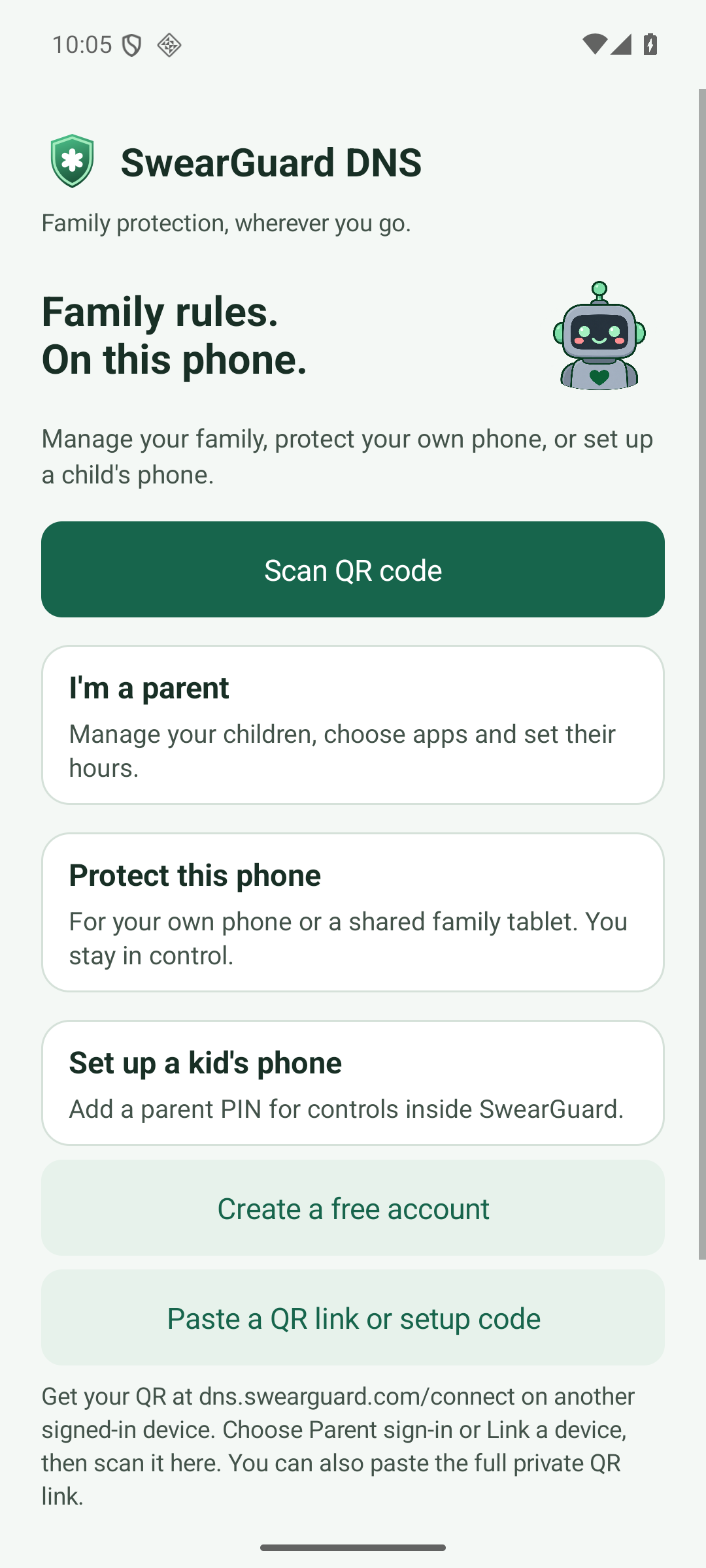
For parents. For their phones.
I’m a parent
Manage your family in the app. Sign in or scan a parent sign-in QR, then choose whether to protect this phone too. We add and configure your phone for you when you choose protection. Use This phone to turn filtering on or off. Your family controls stay available either way.
Open Parent dashboard →Protect this phone
Sign in or scan a device setup QR from Connect with QR. Approve Android’s connection request to turn on filtering. For your own phone or a shared family tablet.
Set up a child’s phone
Sign in with the parent’s account, name the phone, choose an age and read its rules, then set a parent PIN for controls inside SwearGuard. Choose that device in the portal to customise its rules.
Download. Sign in. Connect.
Install the signed download
Download the APK above and open it on your Android phone. If Android asks, allow this browser to install this download. After installation, you can turn that permission off again. You do not need to turn off Play Protect.
Create your account and verify your email
Tap Create a free account in the app. Signup opens in your browser. Open the verification email, then return to SwearGuard DNS and sign in with the same account.
Choose the phone and turn on filtering
Choose your own phone or a child’s phone, give it a name and choose an age setting (or keep existing rules), then tap Sign in & connect. Read and approve Android’s connection request. Wait for Filtering on: Android’s connection icon by itself does not confirm that filtering is working.
Choose what is allowed
Open Parent controls, choose the device, then open a category such as Games, Music or Social. Select apps, choose All day or Set times, and save. In only-allow mode, other listed apps in that category stay blocked.
Already using the 0.2.x test APK? This signed release installs separately. Stop filtering in the test app first, then sign in and connect in the new app. Remove the test app once the new one works.
Start Free. Paid plans open soon.
Free includes all filtering features and 150,000 lookups a month. The app’s Plans & subscription button opens your secure account page. Paid plans open soon. You can keep using SwearGuard Free in the meantime. Existing subscribers can still manage their subscription there.
No payment is needed to download the app. Prices and subscriptions are the same as on the website. Paid plans are sold through our reseller Freemius, which handles payment and tax.
Before you start
Does the app use nearby servers?
The early-access Android app currently connects through our main filtering server. Automatic nearby routing is available for paid router and manual DNS setups; it is not yet enabled in the app.
What does the parent PIN protect?
The PIN protects controls inside SwearGuard. Normal Android setup can still be stopped or uninstalled through Android settings. Managed Android setup adds always-on filtering, app blocking, downtime and daily app allowances. It requires a new or reset parent-owned phone and Android device-owner setup. Removal alerts and Ask parent requests are not included yet.
Why does Android show a key icon?
Android shows a key icon while SwearGuard filtering is on. SwearGuard sends website address lookups to our filtering servers. Your browsing traffic uses your normal connection. Keep Android’s setting that blocks connections outside this app switched off.
What happens if it cannot connect?
The app shows Not connected and retries. Internet access continues without filtering until it reconnects. Free filtering also pauses when the monthly allowance runs out. Some apps use their own encrypted DNS, which can bypass this version.
Which phones work?
Android 8 or newer with a 64-bit ARM processor. The download also supports x86-64 Android test devices. Older 32-bit phones and iPhone cannot install this APK. For Apple devices, use our DNS setup guide.
Privacy and diagnostics
Your parent password is used to sign in; the app does not keep the password. The Parent interface keeps a secure sign-in session on your own phone. Device filtering credentials are encrypted on the phone. QR scanning processes the image on your phone without uploading or saving a photo. Managed mode sends the names and package IDs of controllable installed apps to your account. Usage timing for daily limits stays on the phone. The app includes no advertising or analytics tracker. Optional DNS activity history is controlled in your account. Connection diagnostics omit credentials and browsing data. Read the DNS privacy policy.
Install the Parent portal on your home screen
Open Parent dashboard in Chrome, sign in, then use the browser menu’s Install app or Add to home screen option. This is a shortcut to family controls; it does not turn on phone filtering.
Use a device you already added
Open Connect with QR on another screen. Choose the device and show its QR code, then tap Scan QR code in SwearGuard DNS. Open SwearGuard DNS to connect, or paste the setup code into the app. The code expires after 10 minutes and can pair one phone. Keep its existing rules, or choose an age and read its settings before connecting.
Managed Android phone controls
Follow the managed setup guide on a new or reset parent-owned phone. After pairing, set a parent PIN and enable managed protection. Grant Usage access for daily limits. In the parent app, open Devices → Android phone controls to block installed apps, set a daily allowance, or schedule downtime. Emergency calls, messages and essential system apps remain available. The parent PIN can temporarily unlock apps or end management. Windows and Apple devices use DNS rules; these installed-app controls apply only to managed Android.
Check the download
Our release APK is signed with SwearGuard’s app signing key. Download its SHA-256 checksum. Open-source notices.